Dashboard Overview

Dashboard Overview
Overview
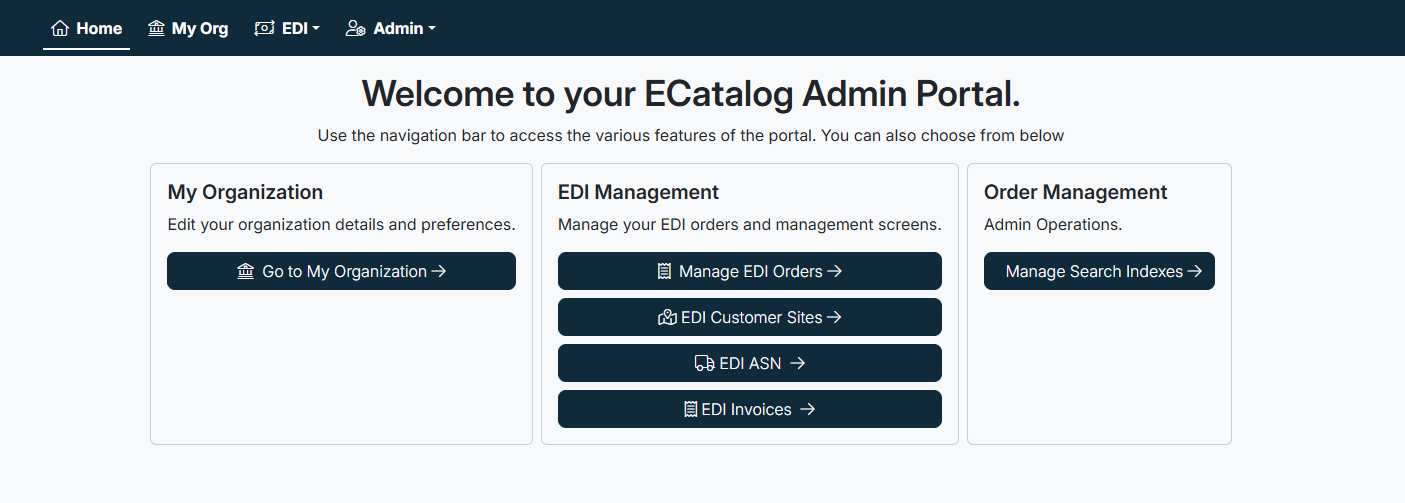
The Dashboard is the first page you see after signing in to the eCatalog Administration Portal. It provides a central entry point to the main administrative functions, allowing you to quickly access organizational settings, manage EDI transactions, and perform order-related operations.
The dashboard is divided into three main areas:
- My Organization → Manage organizational details and preferences.
- EDI Management → View and manage EDI orders, customer site associations, and advanced shipping notices (ASNs).
- Order Management → Access administrative operations such as managing search indexes.
Navigation Bar
At the top of the page, the navigation bar provides quick access to all major sections:
- Home → Returns to the dashboard.
- My Org → Direct link to your organization settings.
- EDI (dropdown) → Access EDI Orders, EDI Customer Sites, and EDI ASN.
- Admin (dropdown) → Access administrative functions (e.g., user management, search index management).
Tip: The navigation bar is always available, allowing you to move between sections without returning to the dashboard.

Quick Access Tiles
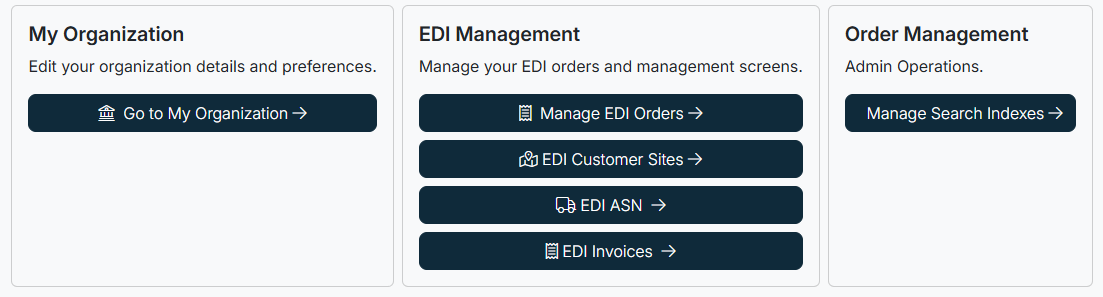
The dashboard includes large tiles for direct access to common tasks:
- My Organization → Edit organizational details and preferences.
- EDI Management →
- Order Management →
- Manage Search Indexes
Clicking any tile opens the corresponding management screen.
Best Practices
- Use the Home button at any time to return to the dashboard.
- Bookmark the Admin Portal dashboard URL for quick entry.
- Familiarize yourself with both the navigation bar and the dashboard tiles — they provide two different but complementary ways to access features.
Created with the Personal Edition of HelpNDoc: Transform Your Documentation Workflow with HelpNDoc's Intuitive UI