EDI ASNs

EDI ASNs (Advance Shipping Notices)
Overview
The EDI ASN (Advance Shipping Notice) module allows you to view, filter, and manage shipping notifications sent through the system. An ASN provides customers with details about an upcoming shipment, including delivery dates, shipment identifiers, and purchase order mappings.
This screen helps vendors and administrators ensure orders are shipped, tracked, and acknowledged correctly.
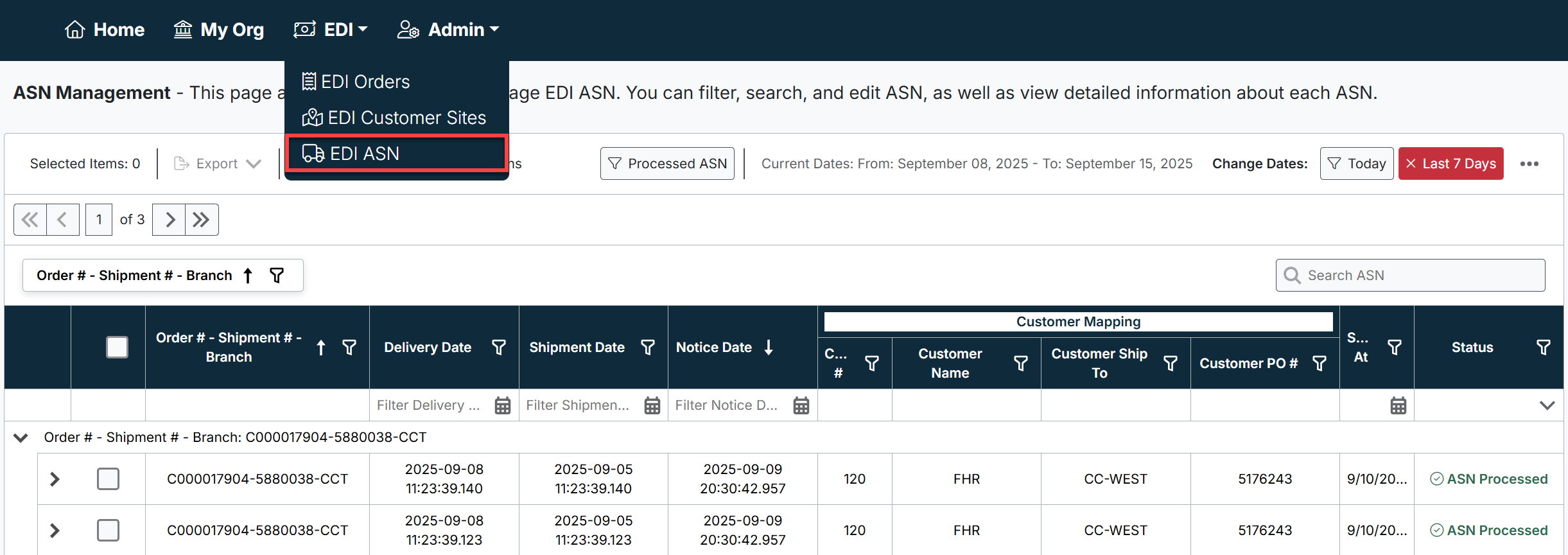
The ASN screen can be accessed from the top navigation bar by selecting:
EDI → ASN
Key Features
1. ASN List Grid
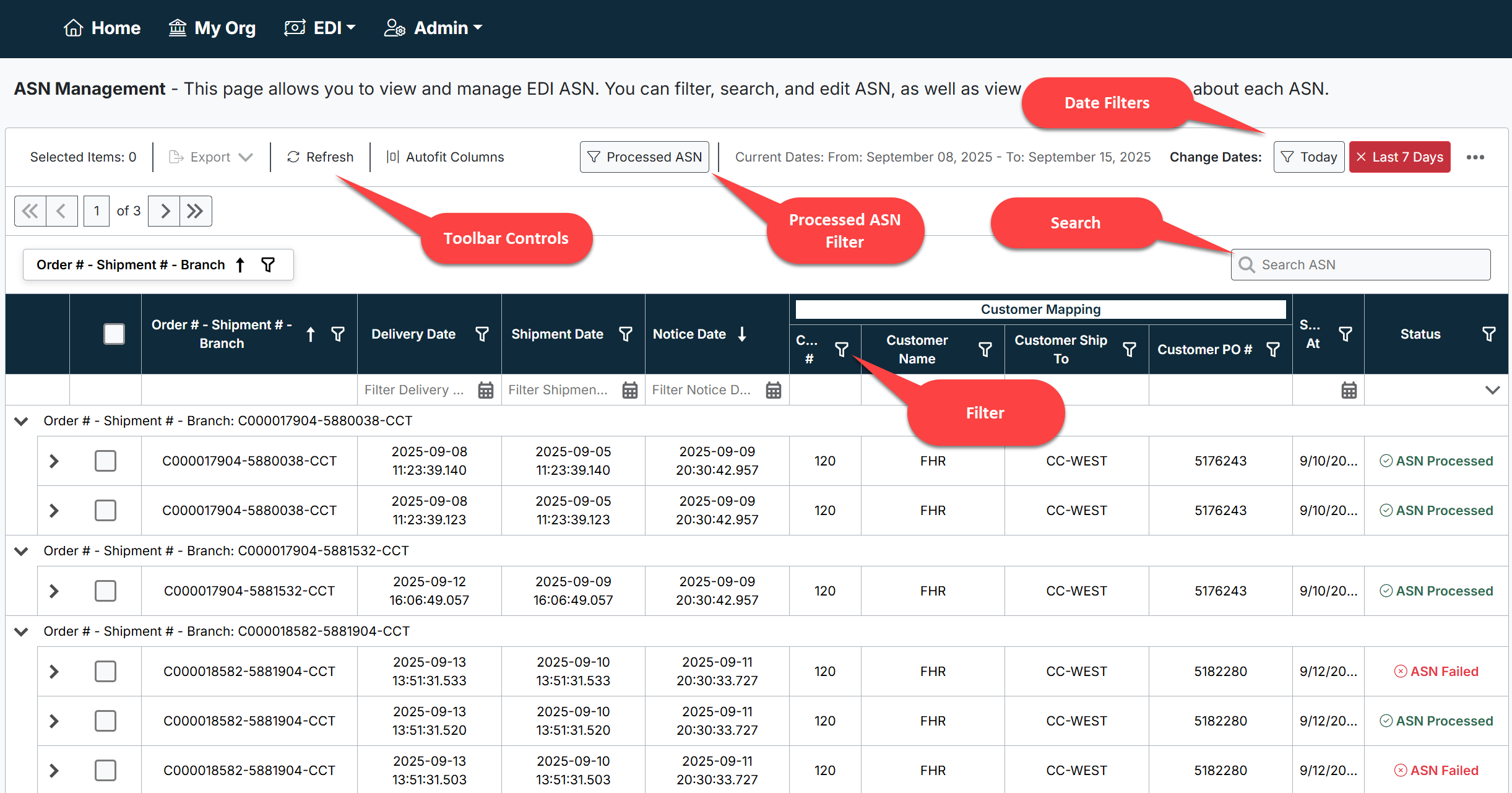
The main grid displays all ASNs within the selected date range. Each row represents a shipment tied to a specific Order # - Shipment # - Branch.
Columns include:
- Order # - Shipment # - Branch: Unique identifier for each ASN.
- Delivery Date: Expected delivery date of the shipment.
- Shipment Date: The date goods were shipped.
- Notice Date: The date the ASN was issued.
- Customer Mapping: Includes customer ID, customer name, and Ship-To location.
- Customer PO #: Purchase Order number provided by the customer.
- Status: Displays whether the ASN has been Processed or Failed.
2. Filters & Search
You can filter and search ASNs to quickly locate relevant shipments:
- Date Filter: Select from preset options (Today, Last 7 Days, Last 14 Days, Last Month) or set a custom date range.
- Processed ASN Filter: Limit the grid to only processed ASNs.
- Search Bar: Search by ASN number or related identifiers.
- Column Filters: Apply filters directly to each column (e.g., Customer, Ship-To, PO Number).
3. ASN Status
The Status column indicates whether the ASN has been successfully processed or if it encountered an error.
- ASN Processed (green check-mark) – The ASN was successfully transmitted and acknowledged.
- ASN Failed (red cross) – The ASN encountered an issue during processing. Failures should be reviewed and corrected before reprocessing.
4. Expanding ASNs
Clicking the arrow next to an ASN entry expands the row to show all related records and shipment details. This may include multiple lines if multiple items are shipped under the same ASN.
Best Practices
- Always review Failed ASNs promptly to ensure shipments are not delayed.
- Use the date filters to narrow down results when working with large volumes of ASNs.
- Cross-check the Customer PO # to verify shipments align with customer purchase orders.
- Ensure that delivery and shipment dates are accurate, as they drive downstream customer notifications.
Created with the Personal Edition of HelpNDoc: Effortlessly upgrade your WinHelp HLP help files to CHM with HelpNDoc