EDI Invoices

EDI Invoices
The EDI Invoices screen allows you to view, filter, search, and manage invoices. From this screen, you can drill down into invoice details, verify itemized line data, and track processing status.
Navigation
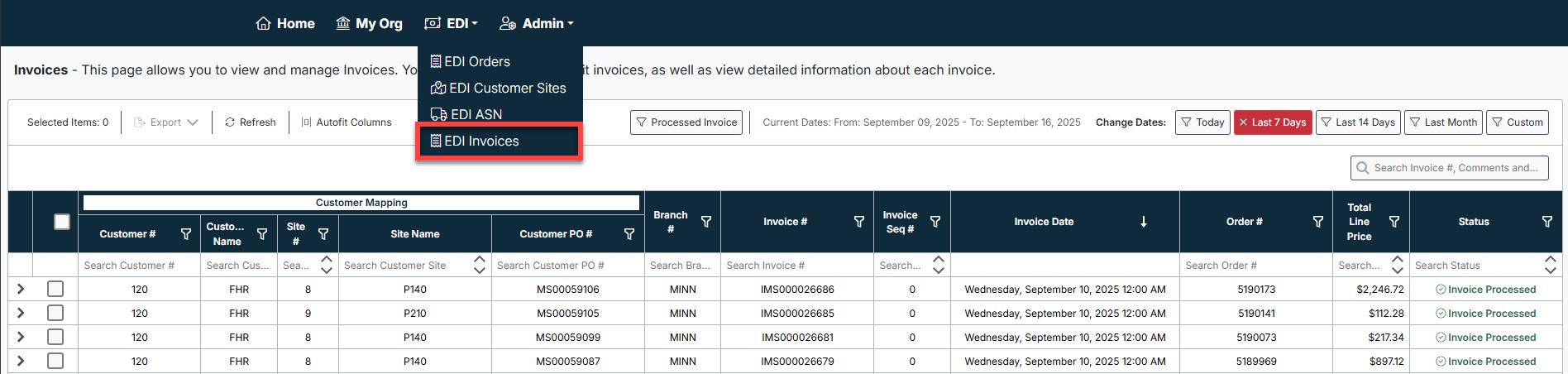
- Access the EDI Invoices screen from the EDI menu in the header bar.
- Select EDI Invoices from the dropdown.
- The system will open the invoice management screen, displaying a list of invoices within the selected date range.
Screen Overview
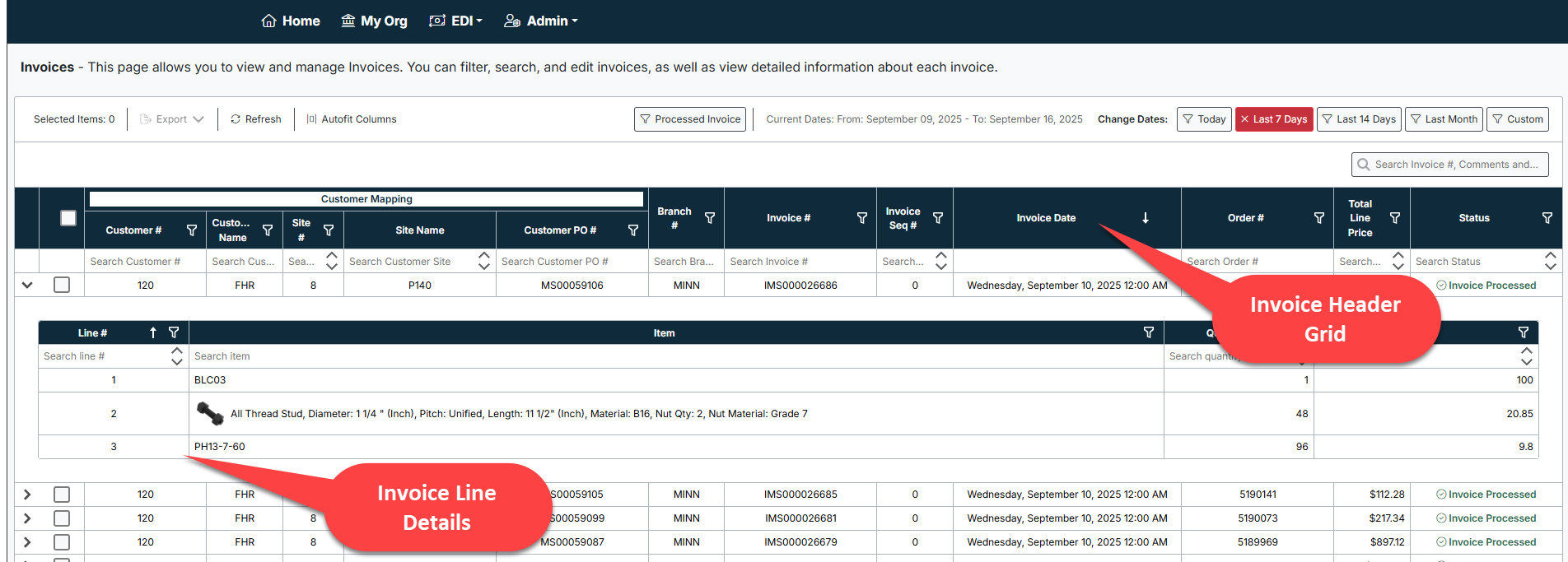
The Invoices screen is divided into two main sections:
- Invoice Header Grid – Displays high-level details for each invoice, including:
- Customer #
- Customer Name
- Site #
- Site Name
- Customer PO #
- Branch #
- Invoice #
- Invoice Sequence #
- Invoice Date
- Order #
- Total Line Price
- Status (e.g., Invoice Processed)
- Invoice Line Details – Expands below each invoice row to display individual items:
- Line #
- Item Code and Description
- Quantity
- Price
- Extended attributes (e.g., material, size, grade)
Key Features
Filtering and Search
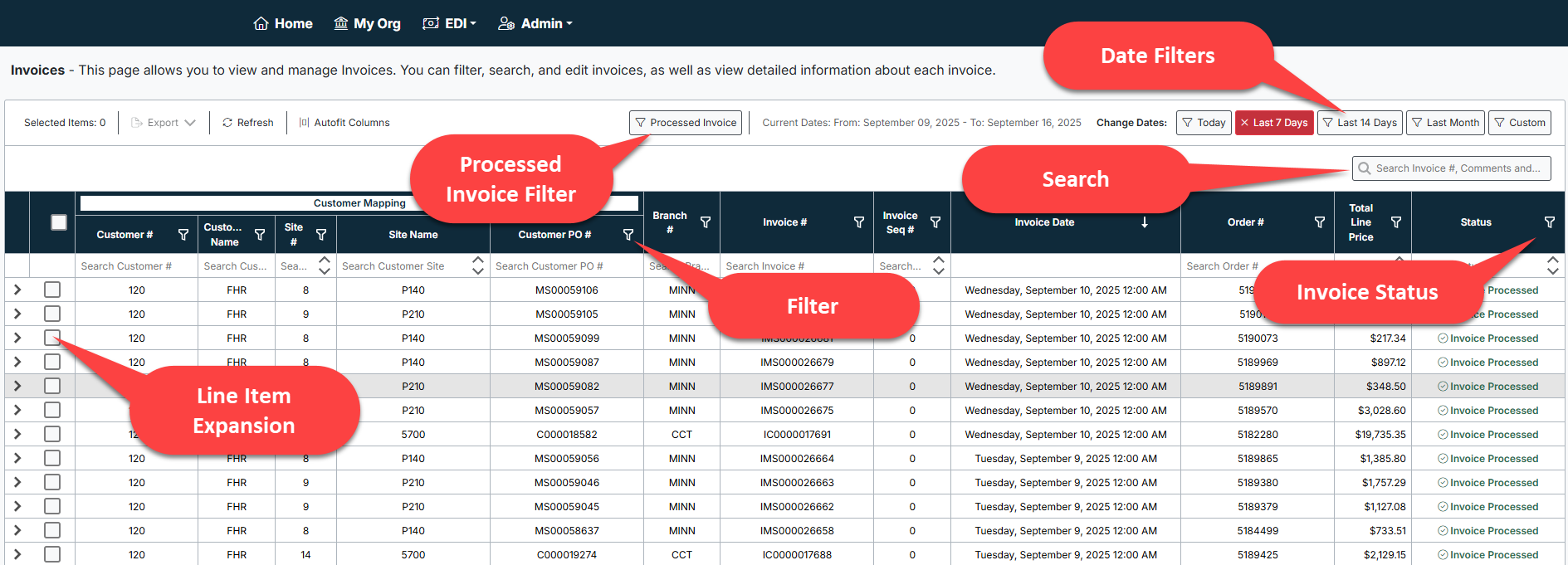
- Use column filters to narrow results by Customer #, Customer Name, Site, Invoice #, PO #, Branch, Date, or Status.
- Search box (top right) allows you to find invoices by number, comments, or customer references.
Date Filters
- Quickly change the invoice date range using pre-defined filters:
- Today
- Last 7 Days
- Last 14 Days
- Last Month
- Custom – set a specific date range
(Recommended screenshot: Date filter dropdown)
Processed Invoice Filter
- Toggle Processed Invoice to display only invoices that have been completed and transmitted successfully.
Invoice Status
- Status column shows the current processing state:
- Invoice Processed – Invoice successfully processed and transmitted.
- Invoice Failed (if applicable) – Invoice encountered an issue during processing.
Line Item Expansion
- Click the arrow beside an invoice row to expand and view all associated line items.
- Line items include item code, description, quantity, unit price, and extended details.
User Actions
- Export: Selected invoices can be exported for reporting or external reconciliation.
- Refresh: Updates the screen with the most current invoice data.
- Autofit Columns: Automatically resizes column widths for optimal display.
Created with the Personal Edition of HelpNDoc: Modernize your help files with HelpNDoc's WinHelp HLP to CHM conversion tool