EDI Orders

EDI Orders
Overview
The EDI Orders section allows you to manage all Electronic Data Interchange (EDI) transactions between your organization and your customers. This area is designed for administrators who need to monitor, review, and process incoming orders received via EDI.
From this section, you can:
- Track all incoming EDI order messages.
- Manage and review active customer orders.
- Access shipping, billing, and contact details.
- Compare order versions to identify changes or updates.
Structure of EDI Orders
The EDI Orders menu contains two key pages:
- Incoming Messages
- Displays all incoming EDI order messages received from customers.
- Provides filtering and search tools to quickly locate messages by Order #, Customer, or Status.
- Allows you to expand and review message details before they are processed.
- Current Orders
- Shows all active orders after they have been processed from incoming messages.
- Provides a complete view of customer, order, and line item details.
- Includes tools for filtering, exporting, comparing order versions, and viewing shipping, billing, and contact information.
Together, these two pages give you end-to-end visibility of the EDI order lifecycle.
When to Use This Section
- Use Incoming Messages when you want to validate new orders as they are received.
- Use Current Orders when you need to review or update processed orders, check status, or resolve customer queries.
Navigation
To access EDI Orders:
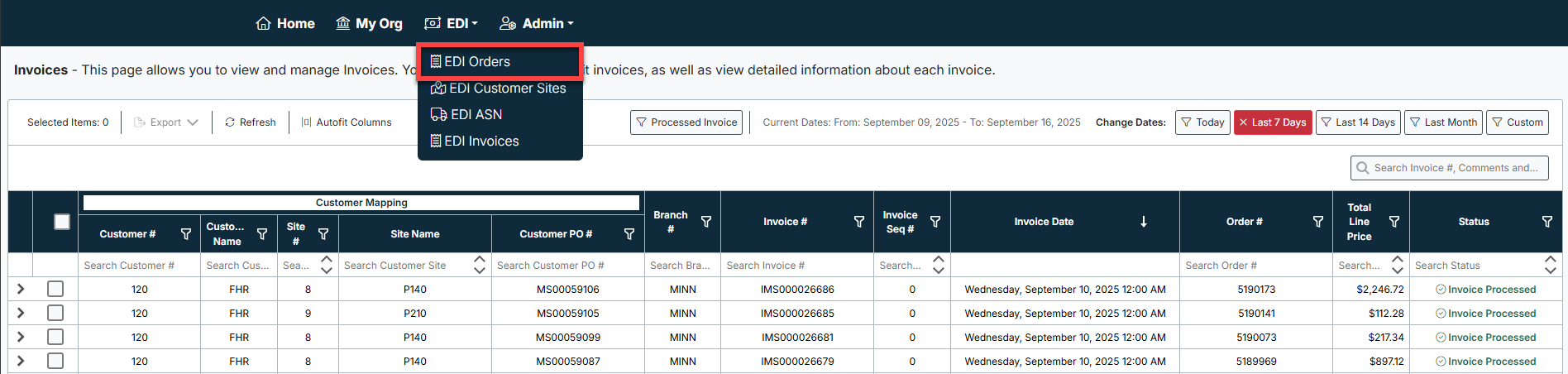
- From the top navigation bar, select EDI → EDI Orders.
- Choose between:
- Incoming Messages to view new EDI messages.
- Current Orders to review processed and active orders.

Best Practices
- Check Incoming Messages daily to ensure new orders are being parsed correctly.
- Use filters in Current Orders to quickly find specific customers or orders.
- Always review Missing ShipTo Info to avoid fulfillment delays.
- Use Compare Versions to track customer updates and maintain accurate records.
Created with the Personal Edition of HelpNDoc: Easily create HTML Help documents