Incoming Messages

Incoming Messages Tab
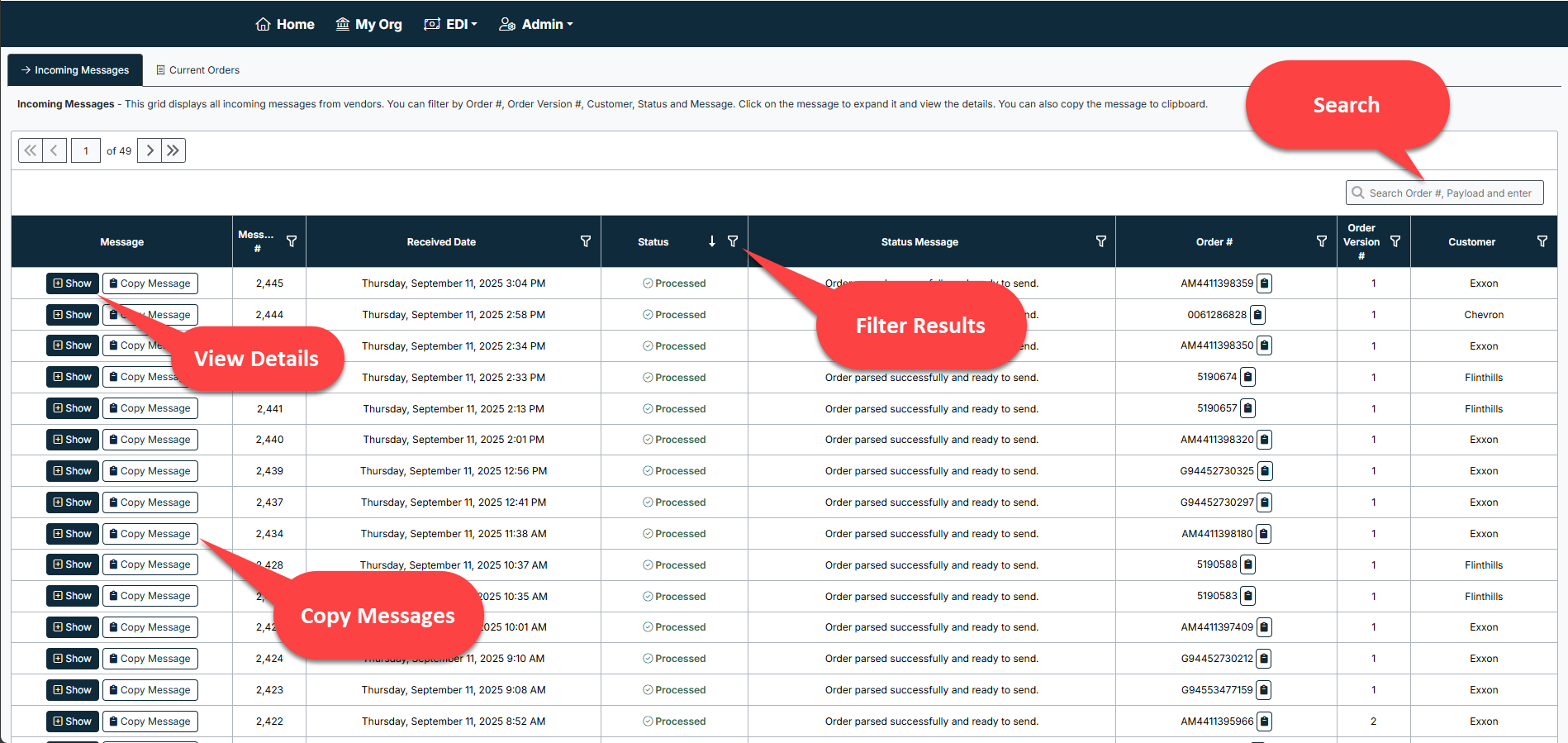
The Incoming Messages tab lists all incoming EDI messages. You can:
- Filter results → by Order #, Customer, Status, or Message.
- Search → using Order # or payload data.
- View details → click Show to expand an order and see full transaction details.
- Copy messages → click Copy Message to copy raw EDI message content for troubleshooting or audits.
Columns include:
- Message # → Unique identifier for the incoming message.
- Received Date → Timestamp of when the order was received.
- Status → Current state of processing (e.g., Processed, Error).
- Status Message → Explanation of the processing state.
- Order # → Customer’s purchase order number.
- Customer → Name of the customer placing the order.
Best Practices
- Use filters to quickly locate orders when working with high volumes.
- Check the Status Message column for processing errors.
- Copy and save raw messages if you need to escalate issues to support.
Troubleshooting
- Order not appearing? Confirm the customer is linked correctly under EDI Customer Sites.
- Message shows an error? Expand the record with Show to review details and determine next steps.
- Need to report an issue? Copy the message and send it to Mtec Cloud Solutions Support for review.
Created with the Personal Edition of HelpNDoc: Save time and frustration with HelpNDoc's WinHelp HLP to CHM conversion feature