Current Orders

Current Orders
Overview
The Current Orders tab provides a comprehensive view of all EDI orders that are actively being managed within the eCatalog Administration Portal. From this screen, administrators can:
- Search and filter orders by multiple criteria.
- View high-level customer, cost, and status information.
- Expand an order to see detailed line items.
- Access shipping, billing, and contact information via pop-ups.
- Compare order versions to track changes.
This screen is central to daily order management and is designed for both quick navigation and detailed review.
Accessing Current Orders
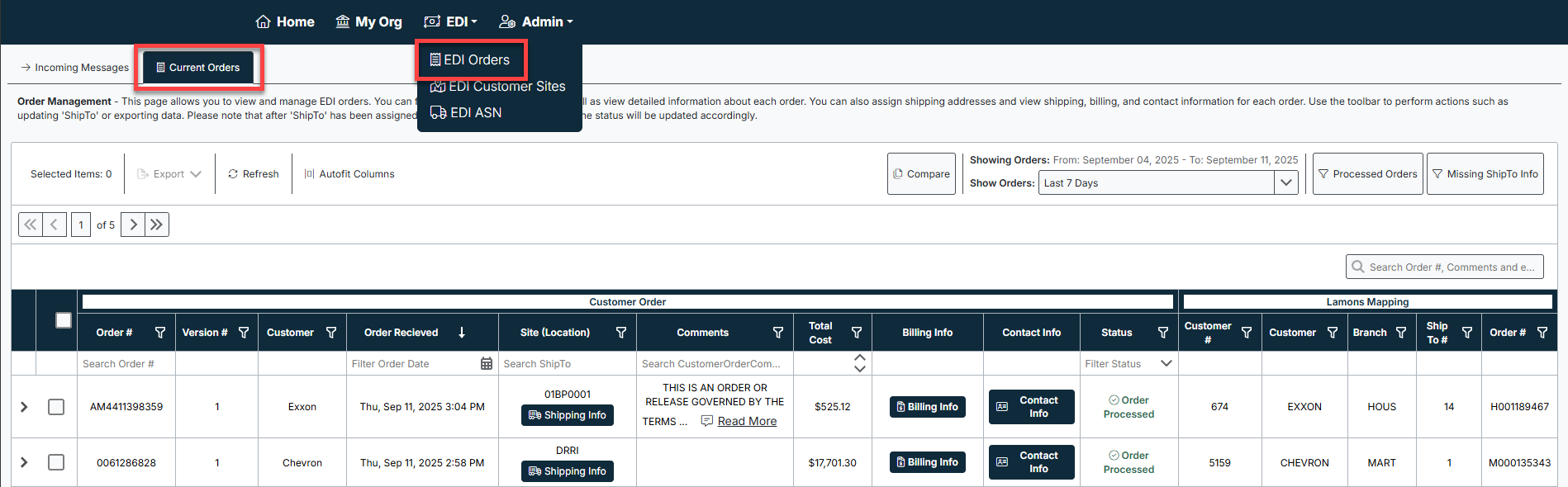
- Navigate to the top menu bar and select EDI → EDI Orders.
- In the EDI Orders page, click on the Current Orders tab.
- The order grid will load, displaying all current EDI transactions that meet the selected date and filter criteria.
Main Features of the Orders Screen
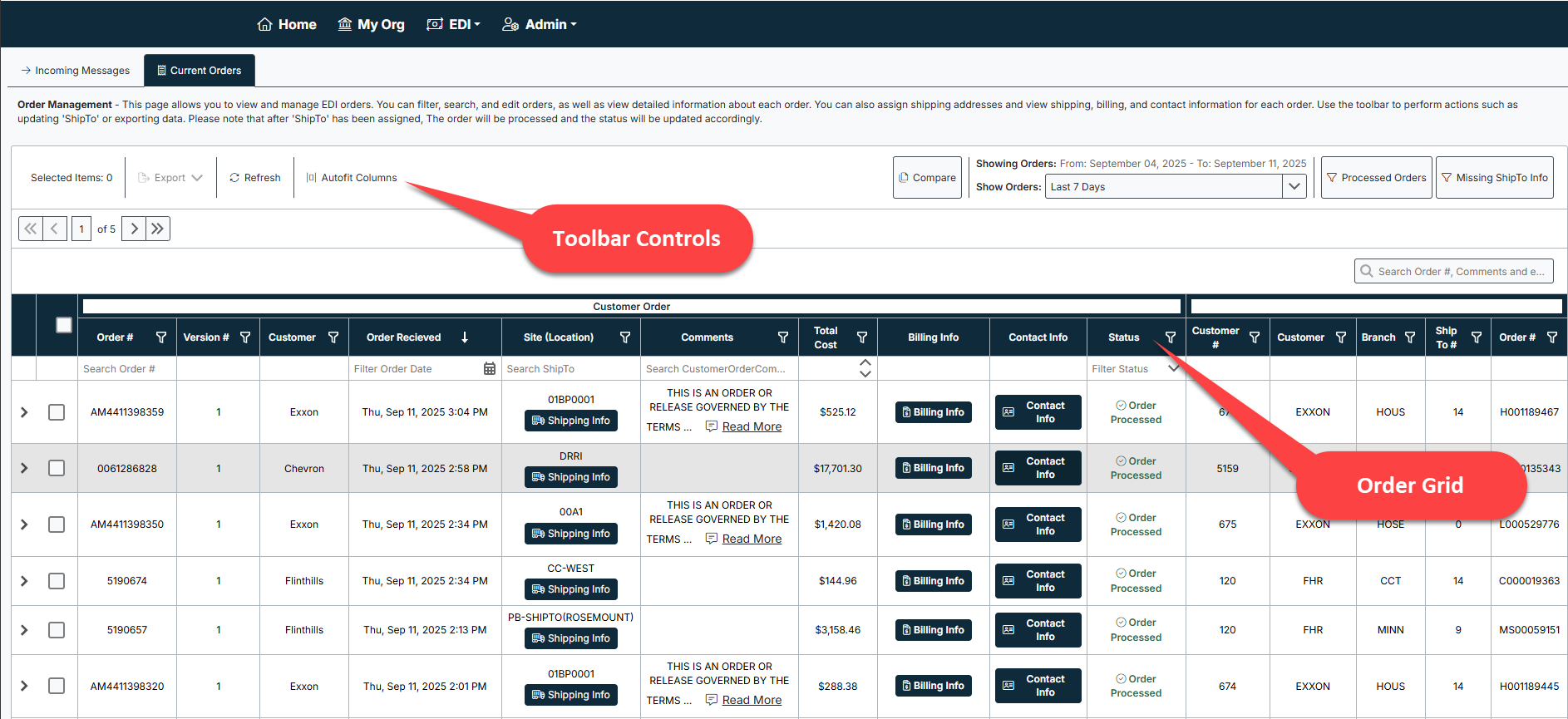
Toolbar Controls
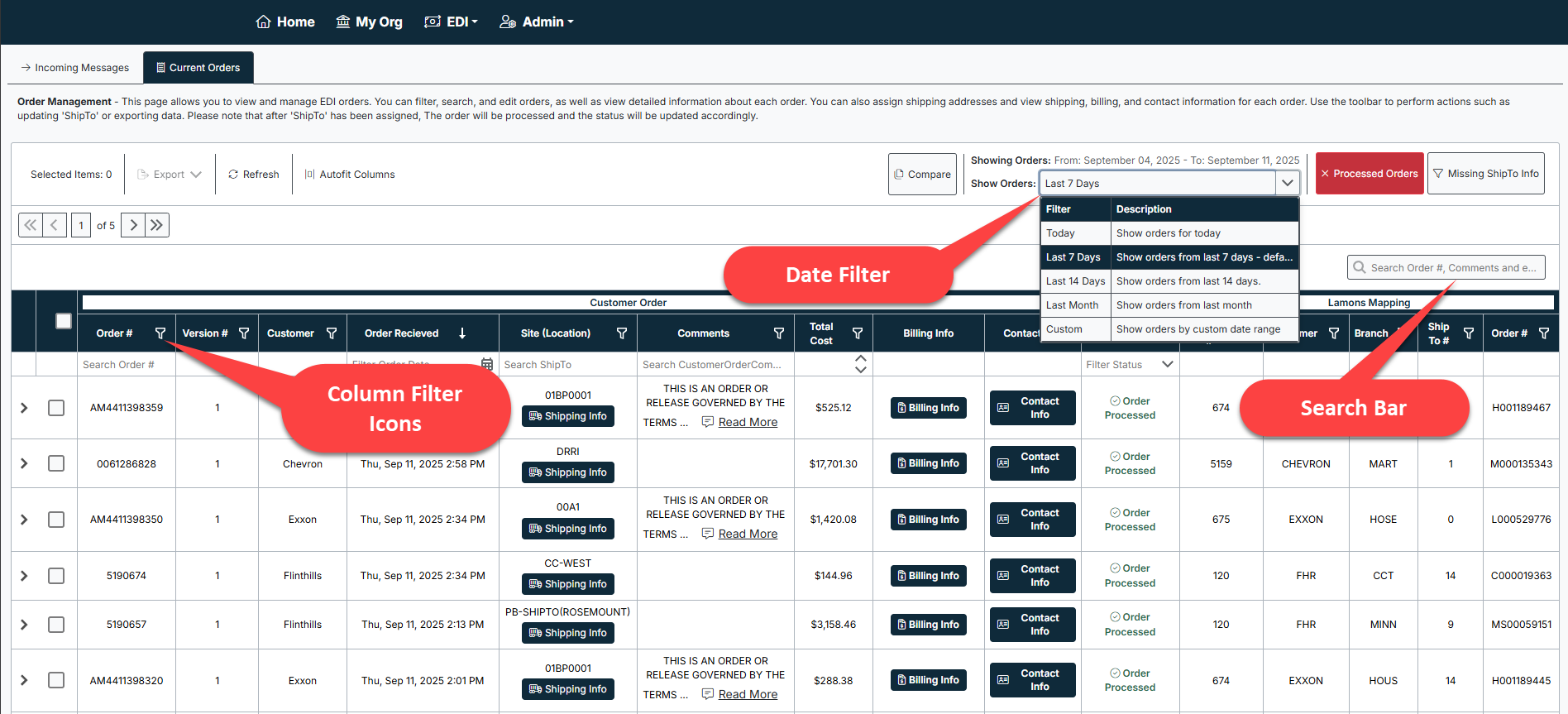
At the top of the screen, you can:
- Export → Download selected orders.
- Refresh → Reload the grid with the latest data.
- Autofit Columns → Resize all columns to fit content.
- Compare → Compare order versions (see section below).
- Date Filters → Choose a preset date range (Today, Last 7 Days, Last 14 Days, Last Month) or set a custom date range.
- Filter Buttons:
- Processed Orders → Limit the display to only completed/processed orders.
- Missing ShipTo Info → Quickly locate orders missing shipping details.
Order Grid (Summary View)
Each row in the grid represents a single order. Key fields include:
- Order # / Version # → Identifiers for the order and version.
- Customer / Order Received → Customer name and the timestamp when the order was received.
- Site (Location) → Ship-to location code.
- Comments → Order-level comments (expandable with Read More).
- Total Cost → Order total.
- Billing Info → Opens a pop-up with billing details.
- Contact Info → Opens a pop-up with contact details.
- Status → Current processing status (e.g., Order Processed).
- Mapping → Additional mapping data, such as Customer #, Branch, Ship To #, and mapped Order #.
Expanding Orders for Details
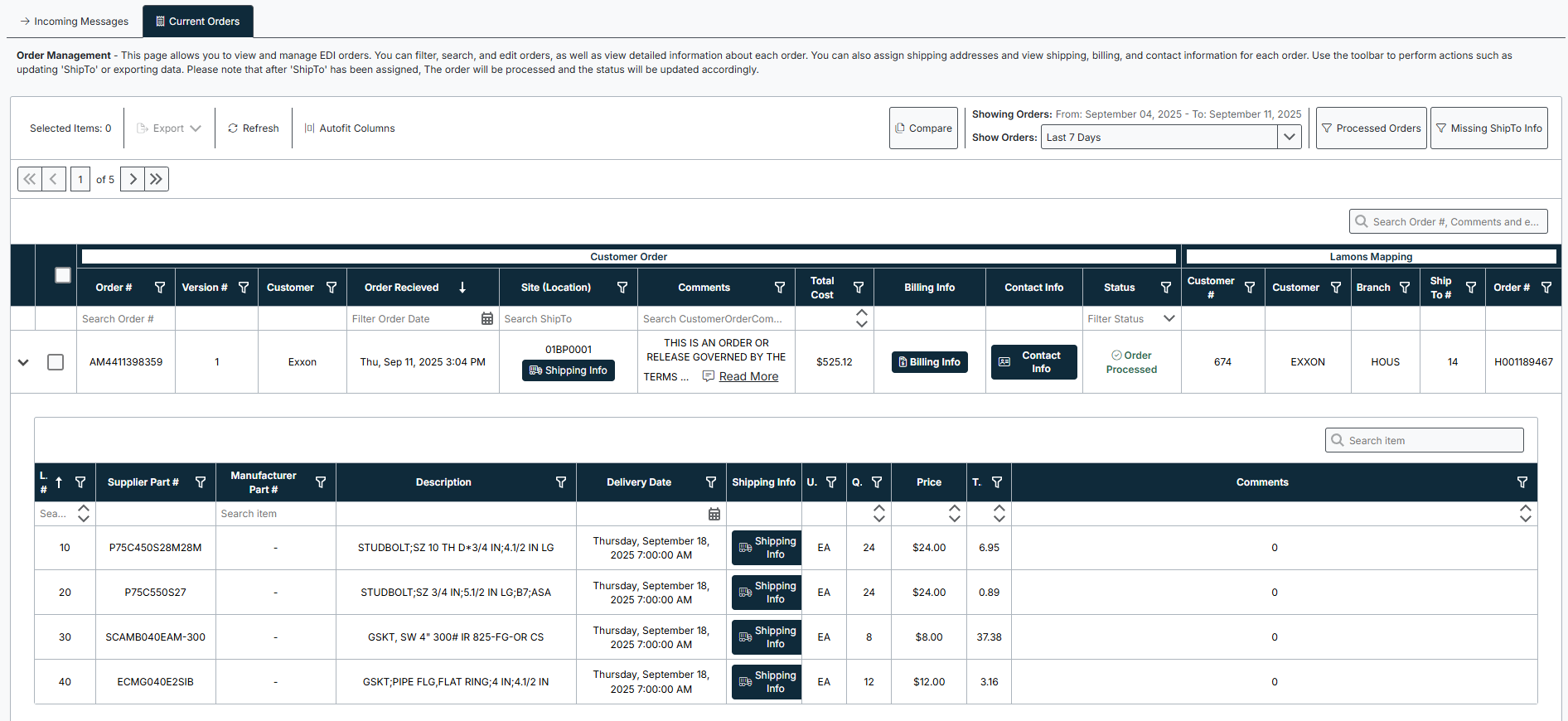
- Click the arrow next to an order to expand it.
- Expanded view displays:
- Line items with supplier part numbers, manufacturer part numbers, descriptions, quantities, unit price, and delivery dates.
- Shipping Info button for each line item.
This provides a full breakdown of what the customer ordered, quantities, and when items are due.
Pop-up Information Windows
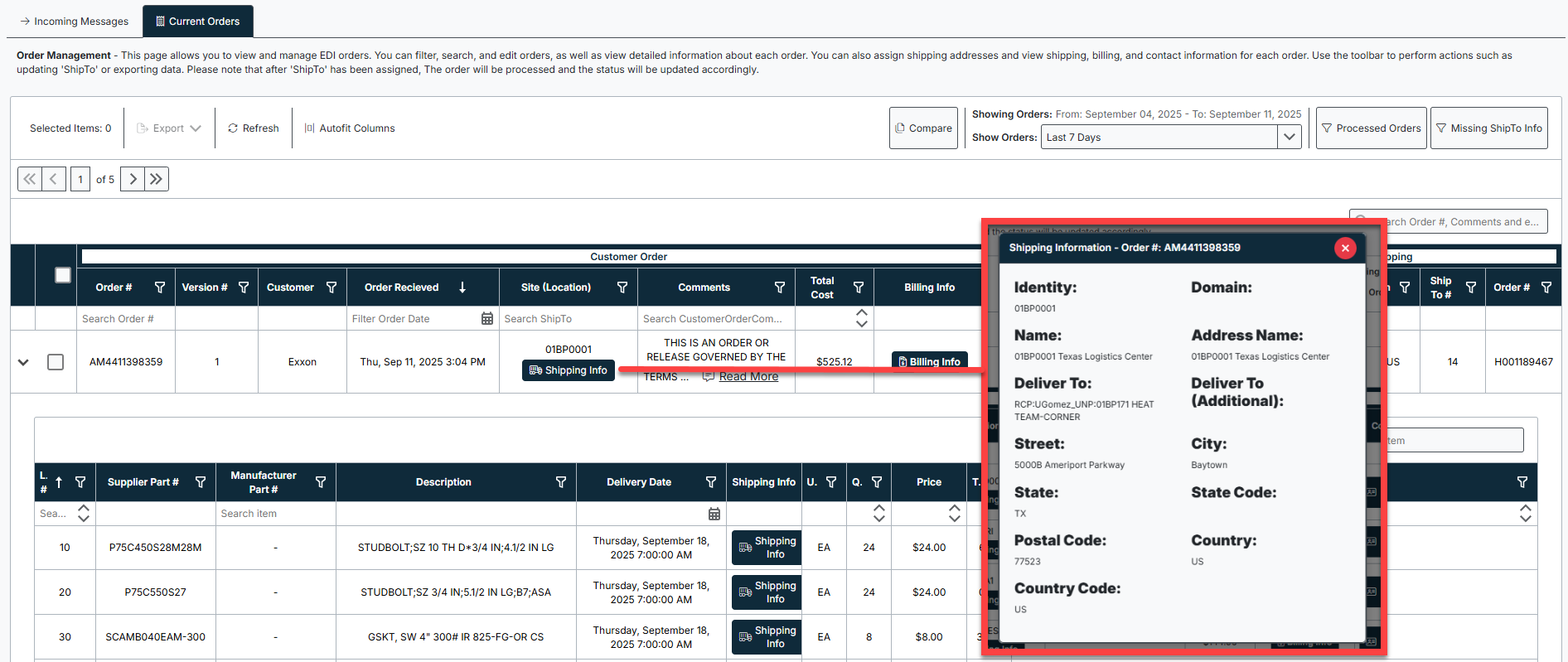
From the grid and expanded details, you can click buttons to access pop-ups:
- Shipping Info → Shows the assigned delivery address, city, postal code, country, and additional details.
- Billing Info → Displays billing address and account details.
- Contact Info → Displays customer contact persons, names, and communication information.
Filtering and Searching Orders
- Use the column filter icons to refine results (e.g., by status, customer, or site).
- The search bar allows searching accross all fields.
- Use the date filter dropdown to restrict orders to a time window.
- Apply the Processed Orders or Missing ShipTo Info quick filters for faster review.
Comparing Order Versions
The Compare feature allows you to track changes across order versions:
- Click Compare in the toolbar.
- Select an order ID from the list.
- Choose the two versions you wish to compare.
- The comparison view highlights:
- Header Differences → Payload ID, timestamps, version numbers, and order-level comments.
- Line Differences → Changes to quantities, requested delivery dates, or comments at the line-item level.
This feature is particularly useful for identifying customer updates or resolving disputes.
Common Tasks
- Find recent orders → Apply the “Last 7 Days” date filter.
- Check missing shipping details → Click the Missing ShipTo Info filter.
- Review customer updates → Use Compare Versions to highlight differences between revisions.
- Export order data → Select orders and click Export for reporting or offline analysis.
Best Practices
- Always apply a date filter before searching to improve performance with large datasets.
- Regularly check Missing ShipTo Info to prevent delays in order processing.
- Use Compare Versions when customers send updated orders to quickly identify what changed.
- Document any discrepancies by exporting the raw data or copying relevant order details.
Troubleshooting
- Orders not displaying? Ensure the correct date range filter is applied.
- Pop-ups not opening? Disable browser pop-up blockers for the portal site.
- Wrong status showing? Refresh the grid or check if the order is mapped under the correct customer site.
- Can’t find a ShipTo code? Verify customer mapping in the EDI Customer Sites section.
Created with the Personal Edition of HelpNDoc: Qt Help documentation made easy